The Epic Games Store takes the Windows build. Not the web build that runs on your arcade, and not a Linux one: a Windows executable, uploaded with Epic's own tool, BuildPatchTool, into a product you set up in the Epic Developer Portal. The store accepts games from any engine through its self-publishing tools, so a Godot 4 game is as welcome as anything else.
The upload is now the studio's job. Tick Windows in the Publish pane, tick Push the Windows build to the Epic Games Store, and when the export finishes vbgnt uploads the build to your product and labels it. The paperwork, the store page, the review and the decision to release stay with you. This guide covers all of it, in the order it actually happens.
What it costs and how long it takes
Epic charges a $100 submission fee per product, which it describes as recoupable. The revenue terms are the generous part: you keep 100% of the first $1 million in net revenue per product per year, and after that the standard split is 88/12 in your favour. Those were the terms on Epic's own pages in October 2026. Check the Epic Developer Portal for current terms before you plan around them.
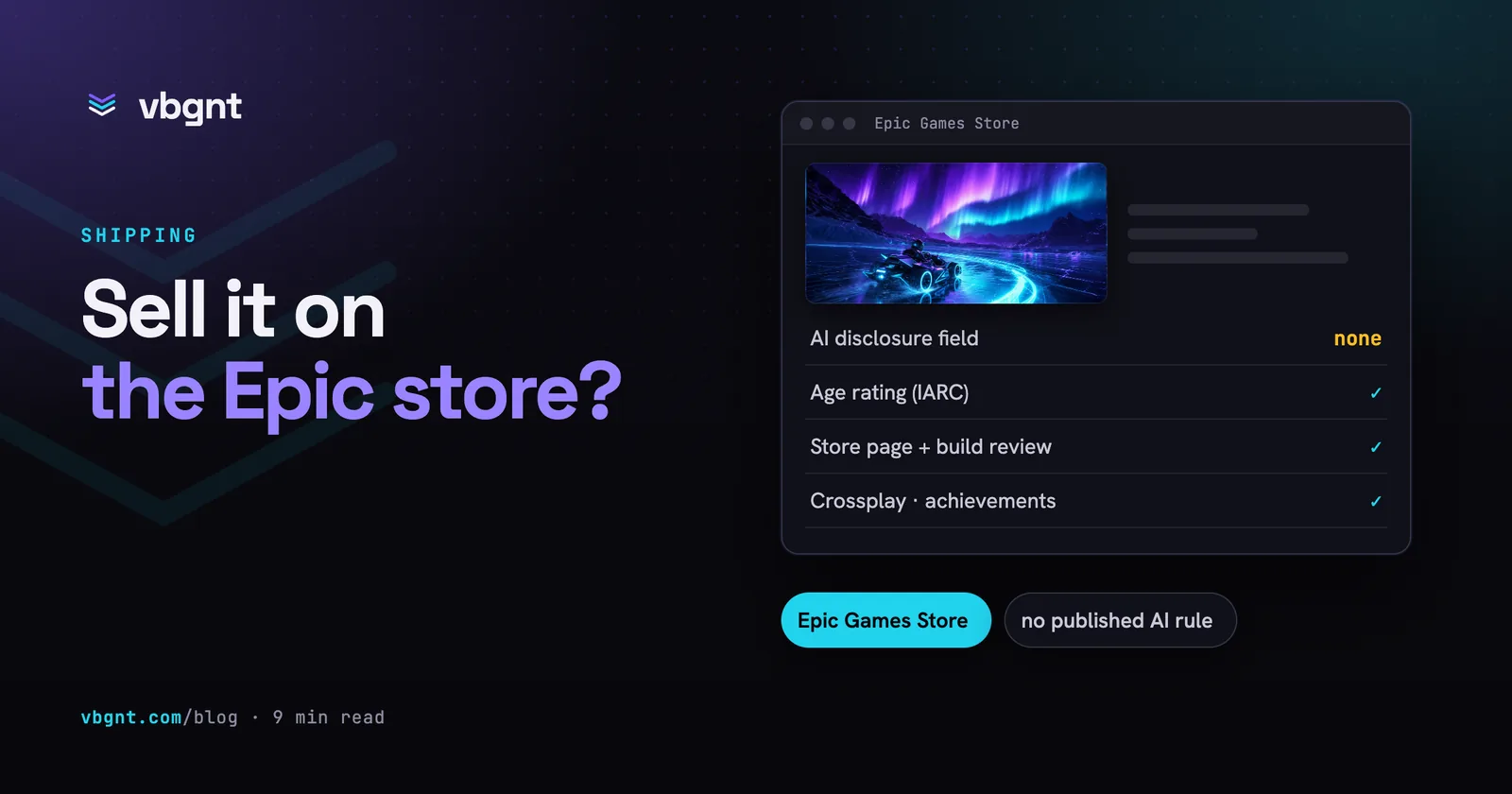
Time is harder to pin down. Steam publishes a 30-day wait after you pay; Epic does not publish a fixed wait or a review turnaround that we could find. What takes the time is the same on every store: verifying your identity, tax and payout details, a review of the store page and the build, and fixing whatever the review sends back. Plan for a few weeks from first sign-in to release, and start the paperwork before anything else.
What Epic asks of every game
Four requirements apply whatever engine made the game:
- Crossplay for multiplayer. A multiplayer game sold on Epic has to let its players play with people who bought it on other PC stores. Matchmaking built on one store's own networking fails that; servers you run yourself, or a store-neutral service, do not. Epic offers its Epic Online Services for this at no charge, but you can use your own solution.
- Achievement parity. If the game has achievements on another PC store, it needs them on Epic too. No achievements anywhere means nothing to do here.
- An age rating. The portal runs the IARC rating questionnaire, which issues ratings for many regions from one set of answers. Answer it accurately.
- Review before release. Epic reviews the store page and the build. The game has to launch, run, and be the game its page describes.
For a single-player vbgnt game, only the last two need any thought.
Step 1: make it a desktop game
The web build was shaped for a browser tab, and a Windows player notices
within a minute. The fixes are the ones the
Steam guide walks through in
detail: confirm the touch controls are hidden on desktop, add a pause menu
with Quit, handle windowing and fullscreen, and make sure saves go to
user:// rather than anything browser-specific. Ask the agent for
all four in one prompt, or make the changes yourself in the
Files pane.
Then export with Windows ticked and play the result on a real Windows machine before Epic ever sees it. Missing resources and shader failures show up at launch and nowhere earlier, and a reviewer finding them costs you a round trip.
Step 2: set up your organisation
Sign in to the Epic Developer Portal with an Epic account and create an organisation. Everything you publish belongs to it rather than to your personal account. Before you can sell anything, the portal asks for identity, tax and payout details. This is the slow, tedious part, so do it first and in parallel with the desktop fixes, not last.
Note the organisation's id when it appears: it is the Organization ID the Publish pane asks for.
Step 3: create the product
Create a product for the game, and pay the $100 fee when the portal asks for it. Epic's model has three more pieces worth understanding before anything is uploaded:
- An artifact is what a build uploads into: the game's downloadable files, in Epic's terms. Its id is the Artifact ID.
- Sandboxes are the stages a product moves through, in a development, stage and live pattern. Each sandbox serves whichever build carries its label.
- A label is a name attached to an uploaded build, such as Live. Putting a label on a different build is how you change what a sandbox serves, without uploading anything again.
The Product ID is in the product's settings, and the Artifact ID is listed under its artifacts.
Step 4: create BuildPatchTool credentials
BuildPatchTool is Epic's command-line uploader, and it signs in with a client id and a client secret. Create a BuildPatchTool client for the product in the Developer Portal and copy both values.
In the studio, open Settings and paste them into the Epic Games Store client ID and client secret fields. You do this once per product, not per export; each Epic product has its own client, so update the fields when you push a different game. Both are stored encrypted. The secret never goes into the export job's record, and on the build machine it reaches Epic's tool only through an environment variable, so it is not on a command line and not in the log you read in the pane.
Step 5: export and push from the Publish pane
- Open the game and switch the right-hand pane to Publish.
- Tick Windows. The Epic option stays greyed out until Windows is ticked and the credentials are in Settings.
- Tick Push the Windows build to the Epic Games Store and fill in the four fields: Organization ID, Product ID, Artifact ID and Label. They are saved on the game, so the next export has them already.
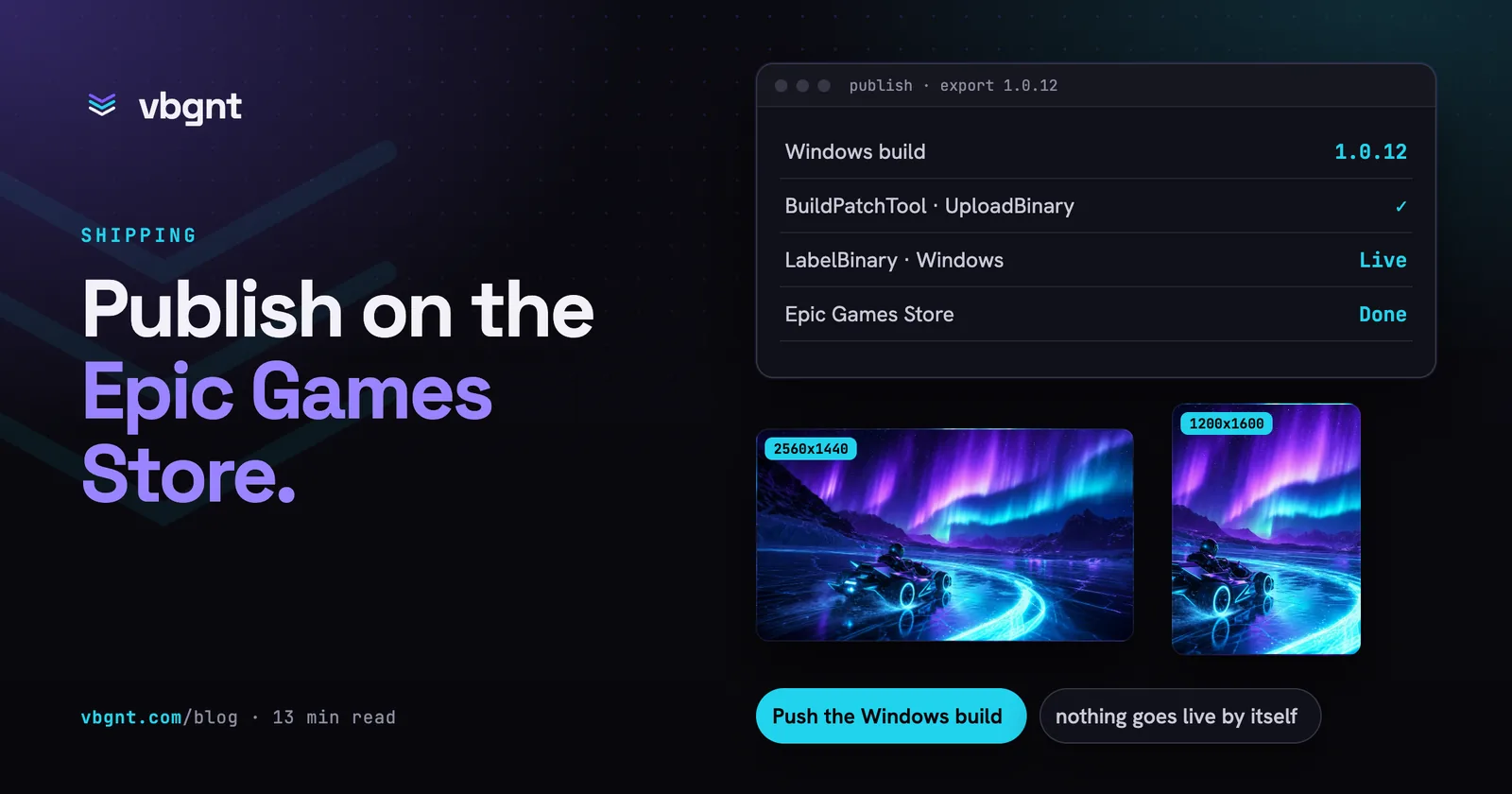
- Press Export. The build machine exports the Windows
build, runs BuildPatchTool's
UploadBinaryinto your artifact, thenLabelBinaryto put your label on it for Windows. - Watch the Epic Games Store row in the job. When it reads Done it shows the build version, which is the game's 1.0.N version followed by the export's id, and the label it got.
What gets uploaded is the Windows build exactly as the pane exports it: one executable with the game data embedded, nothing to keep beside it, and the 1.0.N version written into the file's properties. The launch executable is set for you. A bug report from an Epic player tells you which build they have, and the version in the job row tells you which build each label points at.
Which label to use? While you are testing, use the label your development sandbox reads. Live is for the build you intend players to get.
Nothing goes live by itself
A finished push means one thing: a build is in your artifact with your label on it. Whether anyone can play it depends on which sandbox reads that label, whether the store page is published, and whether Epic's review has passed the release. Pushing with the Live label before all that does not release the game. It makes that build the one the live sandbox will serve once everything else says yes.
Before you submit, install the build through the Epic Games Launcher from a test sandbox and play it there, the way a player will. The portal explains how to give your own account access to a sandbox that is not live.
Mac and Linux
The pane pushes Windows only. The Epic Games Store does not distribute Linux builds, so there is nothing to send there. It does sell Mac games, but the studio's macOS export is ad-hoc signed and not notarised, which is fine for testing and not what a store release needs. If Mac players matter to you, check the portal's current Mac requirements and plan on signing that build with your own Apple account.
Step 6: the store page
Epic's store page asks for fewer images than Steam's, but they are large. In the same Publish pane, under Marketing kit, tick Epic Games Store and press Generate kit. The agent plays the deployed game and composes the set from its real captures:
- The landscape offer image at 2560x1440, used on the store home, in carousels and as the library's wide tile.
- The portrait offer image at 1200x1600, used in the browse grid and the library grid.
- The game's logo on its own, a PNG with transparency.
- Gameplay screenshots at 1920x1080, with no captions or frames baked in.
- The store text: the short and full descriptions, a feature list, genres and tags, languages, notes for the rating questionnaire, and minimum and recommended Windows system requirements, with every field's character count beside it.
Offer images carry the art and the game's name and nothing else: no review quotes, badges, prices or "available now". The store crops both of them in places, so the kit keeps the logo well away from the edges. Its README lists anything it could not confirm against the portal, such as the logo's pixel size or a text field's limit, so you check a short list rather than everything.
For a gameplay video, press Make trailer on the finished kit. It is the same trailer step every kit has: the agent records the game with the engine's own movie-maker mode, with its real audio, and cuts a 1920x1080 MP4 that opens on play. Check the portal's video specs before you upload it.
Write the short description as the mechanic, not the genre. "You can hold the lamp or use your hands, never both" tells a stranger whether they want the game. "An atmospheric platformer" tells them nothing.
Step 7: rating, review and release
Complete the IARC questionnaire in the portal. The kit's rating notes cover the questions people tend to answer carelessly: violence, language, online interaction and purchases. Then submit the store page and the build for review. Fix what comes back and resubmit.
When both pass, you choose the moment. Put the label the live sandbox reads on the build you tested, publish the page, and the game is on the store.
Where vbgnt does the work
The studio's half:
- The game itself, as a Godot 4 project you can download from the Files pane.
- The Windows export, versioned 1.0.N, as one executable.
- The upload to your artifact and the label, every time you export with the push ticked.
- The offer images, logo, screenshots, store text and trailer, from the marketing kit.
Your half: the Epic account and organisation, identity, tax and payout details, the product and its artifact, the BuildPatchTool credentials, the $100 fee, the rating questionnaire, the submission, and the decision to release. Epic wants those from a person, and so do we.
Selling on Steam and Epic at once
The same Windows build serves both stores, and both copies carry the same 1.0.N version, which keeps bug reports simple. Two Epic rules bite only when you sell in both places. If you added Steam achievements, Epic expects achievements too. If the game is multiplayer, the Epic copy has to play with the Steam copy, so run a session between the two before you submit.
The stores also differ on AI. Steam asks you to disclose generated content; Epic has not published an equivalent rule. Can you sell an AI-generated game on the Epic Games Store? covers what Epic has and has not said.
The honest read
For a small game, Epic's terms are the best of the big PC stores. It costs $100 to get on, and Epic takes nothing until a game earns $1 million in a year, which almost no small game will. The upload, which used to be the fiddliest step, is now a checkbox.
What Epic will not do, any more than Steam, is find players for you. A store page with nobody sent to it stays quiet. The $100 buys you a shelf, not a spotlight.
Which is still the argument for itch.io first. It is free, it takes minutes, and if a game finds players there, a Windows store is an easy next step. The export guide lists exactly what each platform build contains.
Frequently asked questions
Can you publish a Godot game on the Epic Games Store?
Yes. The Epic Games Store accepts games from any engine through the self-publishing tools in the Epic Developer Portal. You upload a native Windows build, not the WebAssembly build that runs in a browser, so a Godot 4 project needs a Windows export with the usual desktop fixes: touch controls hidden, a way to quit, windowing and fullscreen, and saves in user://.
How much does it cost to publish on the Epic Games Store?
A $100 submission fee per product, which Epic describes as recoupable. On revenue, developers keep 100% of the first $1 million in net revenue per product per year, and the standard 88/12 split applies after that. Those were the terms on Epic's pages in October 2026, so check the Epic Developer Portal for current terms.
Can vbgnt upload my game to the Epic Games Store?
Yes, the Windows build. Add the product's BuildPatchTool client id and secret in Settings (once per product), then in the Publish pane tick Windows and Push the Windows build to the Epic Games Store, and enter the Organization ID, Product ID, Artifact ID and a label. The export uploads the build with BuildPatchTool and applies the label. You still create the organisation and product, pay the fee, complete the rating questionnaire, submit for review and decide when to release.
What images does the Epic Games Store need?
A landscape offer image at 2560x1440, a portrait offer image at 1200x1600, the game's logo as a transparent PNG, and gameplay screenshots at 1920x1080. The marketing kit's Epic Games Store option makes all of them from the game's real captures, with the store text, and lists anything it could not confirm against the portal. A Make trailer button on the finished kit then renders a 1920x1080 gameplay trailer.
Does the Epic Games Store need a Mac or Linux build?
No. Windows is enough to sell a game there. The store does not distribute Linux builds, and a Mac build is optional; if you add one, check the portal's current Mac requirements and sign it with your own Apple account, because the studio's macOS export is ad-hoc signed and not notarised.